How to Create an Individual Topic Page?
- To show the topic name and all the entries for that topic, we need to create a page that can focus on a single topic.
Revisiting urls.py — The Topic URL Pattern:
- This URL pattern will require the topic’s id attribute to indicate which topic was requested.
- For example, if the user wants to see the detail page for the topic Data_Types, where the ID is 1, the URL will be http://localhost:8000/topics/1/
- Here’s the pattern to match this URL in the code_journals/urls.py:
urls.py
python
11#--snip--
12urlpatterns = [
13	#--snip--
14    # Detail page for a single topic
15    path('topics/<int:topic_id>/', views.topic, name='topic'),
16]- Let’s first dissect:
'topics/<int:topic_id>/'- In the first part of the string, we look for URLs that have the word topics after the base URL.
- In the second part, int:topic_id the string matches an integer between two forward slashes and stores the integer value in an argument called topic_id. The view function topic() is then called with the value stored in topic_id as an argument. Finally, we’ll use the value of topic_id to get the correct topic inside the function.
Revisiting views.py — The Topic View:
- The topic() function needs to get the topic and all associated entries from the database, as shown here:
views.py
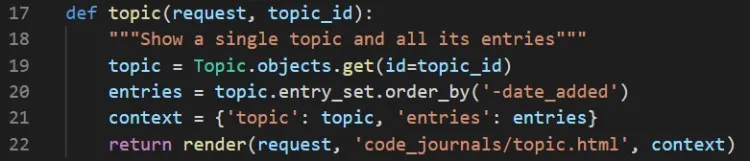
- Note that in addition to the request parameter, the function needs the topic_id value in line 17.
- In line 19, we use get() query (remember the shell commands?) to retrieve the topic.
- In line 20, we get the entries associated with the topic. Note that lines 19 and 20 are both code phrases called queries because here we are querying the database. The minus sign in front of date added simply reverses the sorting order by date added.
- Finally in line 21, we store the topic and entries in the context dictionary and send context to the template topic.html.
The Topic Template:
- The template that will display the name of the topics and entries, we’ll call and create the topic.html
topic.html
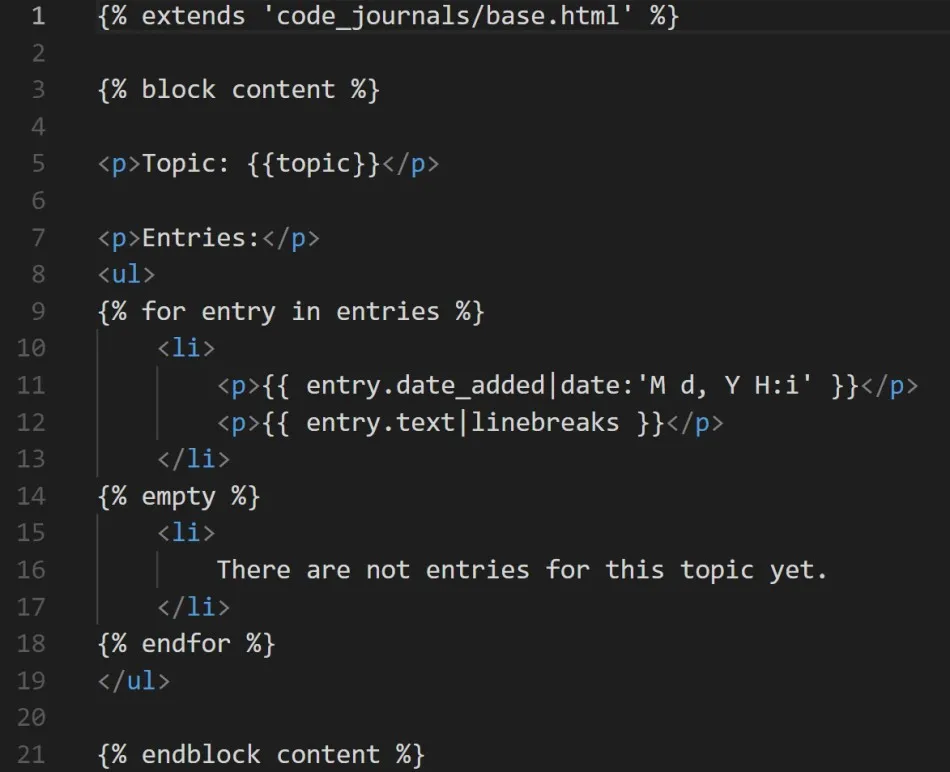
- In line 5, the variable topic is available because it’s included in the context dictionary.
- We then start a bulleted list in line 8 to show each of the entries and loop through them as we did the topics previously in line 9.
- Each bullet will list two pieces of information: the timestamp and the full text of each entry.
- Note that in Django templates, a vertical line ( | ) represents a template filter which modifies the value in the template variables.
Links from the Topics Page:
- Finally, we need to modify the topics template so each topic links to the appropriate page.
- Here’s the change to the topics.html:
topics.html
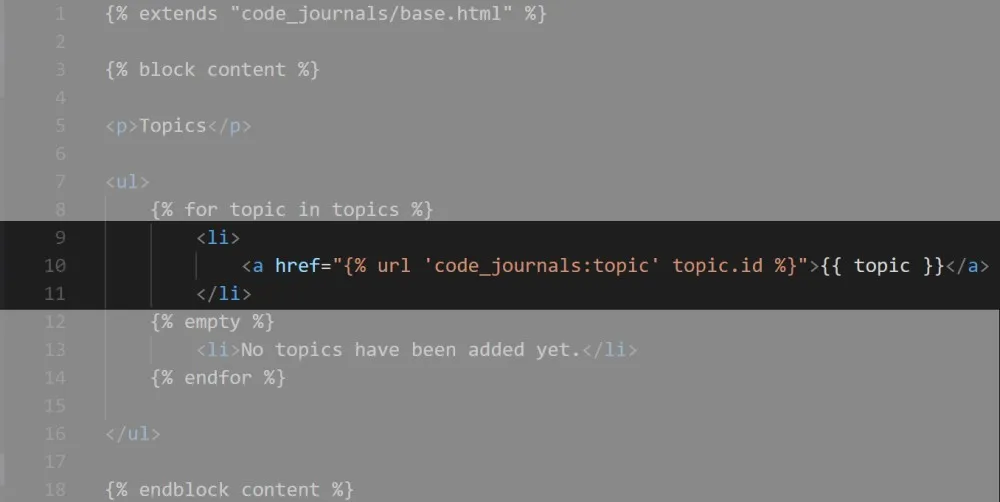
- We use the URL template tag to generate the proper link, based on the URL pattern in code_journals with the name ‘topic’
- This URL pattern requires a topic_id argument, so we add the attribute topic.id to the URL template tag.
- Now, each topic in the list of topics is a link to a topic page, such as http://localhost:8000/topics/1/