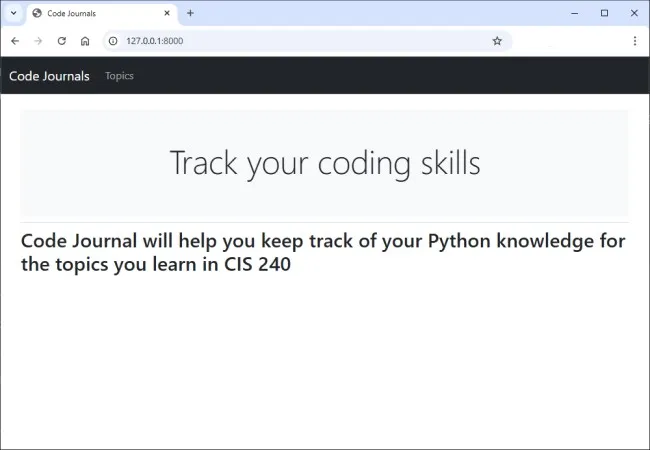
Modify base.html:
- We need to modify the base.html template to accommodate the Bootstrap template.
Define the HTML Headers:
- First, we need to add some requirements for using Bootstrap in our templates. Delete everything in base.html and replace it with the following code:
base.html
html
1{% load django_bootstrap5 %}
2<!doctype html>
3<html lang="en">
4
5<head>
6  <title>Code Journals</title>
7  {% bootstrap_css %}
8  {% bootstrap_javascript %}
9</head>- In line 1, we load the collection of template tags available in the django-bootstrap5 app.
- In line 7, we use one of django-bootstrap5’s custom template tags, which tells Django to include all the Bootstrap style rules. The tag that follows enables all the interactive behavior you might use on a page, such as collapsible navigation bars.
- In line 9, is the closing tag.
Define the Navigation Bar Headers:
- Next, we’ll define the navigation bar at the top of the page:
base.html
html
10<!-- Open the body tag, then create a navigation bar -->
11<body>
12    <nav class="navbar navbar-expand-lg bg-dark mb-4 border" data-bs-theme="dark">
13        <div class="container-fluid">
14            <a class="navbar-brand" href="{% url 'code_journals:index'%}">Code Journals</a>
15
16          <button class="navbar-toggler" type="button" data-bs-toggle="collapse"
17          data-bs-target="#navbarColor01" aria-controls="navbarColor01"
18          aria-expanded="false" aria-label="Toggle navigation">
19            <span class="navbar-toggler-icon"></span>
20          </button>
21
22          <div class="collapse navbar-collapse" id="navbarColor01">
23            <ul class="navbar-nav me-auto">
24              <li class="nav-item">
25                <a class="nav-link" href="{% url 'code_journals:topics'%}">Topics</a>
26              </li>
27            </ul>
28          </div>
29        </div>
30 </nav>- The first element is the opening tag. The body of an HTML file contains the content users will see on a page.
- In line 12 is a < nav> element that indicates the navigation link section of the page.
- Everything contained in this element is styled according to the Bootstrap style rules defined by the selectors navbar, navbar-expand-lg, bg-dark, and mb-4 border. A selector determines which elements on a page a certain style rule applies to.
- In line 14, we set the project’s name to appear at the far left of the navigation bar and make it a link to the home page, because it will appear on every page in the project.
- In lines 16 through 20, the template defines a button that will appear if the browser window is too narrow to display the whole navigation bar horizontally. When the user clicks on the button, the navigation elements will appear in a drop-down list.
- In line 22, we define a set of links that lets users navigate the site. A navigation bar is basically a list that starts with < ul> (line 23) and each link is an item in this list.
Define the Main Part of the Page:
- The rest of base.html contains the main part of the page:
base.html
html
31    <!-- Page specific content goes in the blocks below -->
32    <main role="main" class="container">
33        <div class="pb-2 mb-2 border-bottom">
34        {% block page_header %}{% endblock page_header %}
35        </div>
36        <div>
37        {% block content %}{% endblock content %}
38        </div>
39    </main>
40
41</body>
42</html>- At line 32 we open the < main> tag. The main element is used for the most significant part of the body of a page. Here we assign the bootstrap selector, container, which is a simple way to group elements on a page.
- Below the div element on line 33 contains a page_header block. We’ll use this block to title most pages.
- At line 36 we define one more div element, which contains the block content. We don’t apply any specific style to this block, so we can style the content of any page as we see fit for that page. We end the base.html file with closing tags for the main, body, and html elements.
Apply a Jumbotron to the Home Page:
- Update the home page using the newly defined header block and the jumbotron Bootstrap element:
index.html
html
1{% extends "code_journals/base.html" %}
2
3{% block page_header %}
4<section class="bg-light text-center py-5">
5    <div class="container">
6      <h1 class="display-4">Track your coding skills</h1>
7    </div>
8</section>
9{% endblock page_header %}
10
11{% block content %}
12<h2>Code Journal will help you keep track of your Python
13knowledge for the topics you learn in CIS 240</h2>
14
15{% endblock content %}- In line 3, we tell Django that we’re about to define what goes in the page_header block.
- Inside the section element we place a short tagline, to give users a sense of what the project does. The index page should now look like the below figure, a significant improvement over our unstyled project: