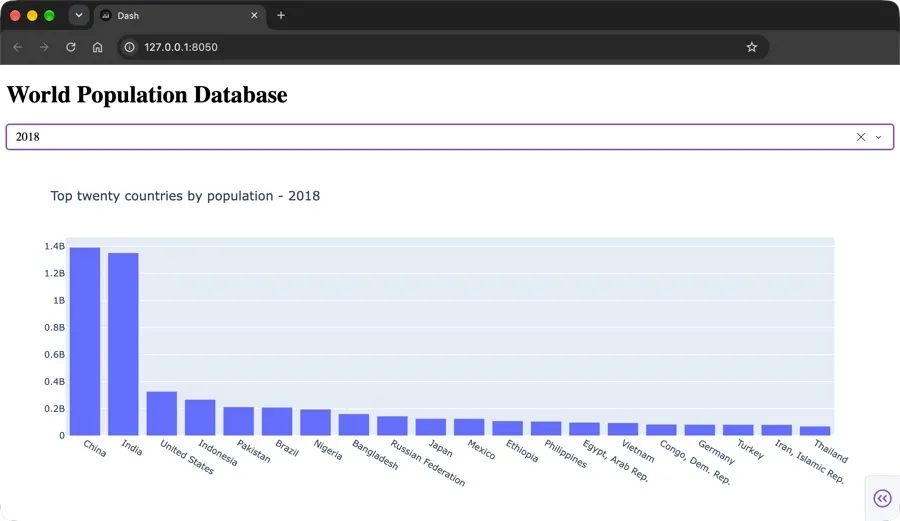
Making the Chart Interactive with a Callback Function:
-
Now let’s use our newly created Python function and learn how to make it interactive with a dropdown component and a callback function by ddding the app.layout attribute & defining the Dropdown and Graph Components
-
To do so, we’ll add our app.layout attribute which will contain two components:
- Dropdown: This will display all the available years so that the user can select the one they want.
- Graph: This is a new component that we haven’t covered yet. Adding a Graph component to the layout displays an empty chart. When modifying a component in a callback function, we need to provide its component_id and component_property. In the below example, we must modify the figure property, which belongs to the graph component.
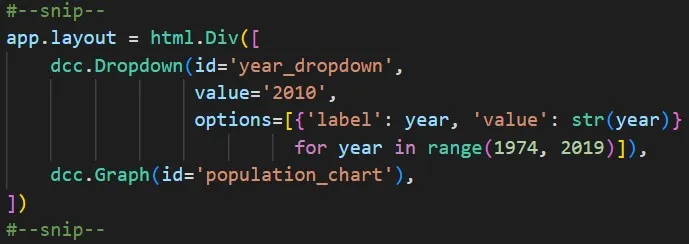
- The below is a snippet of the app.layout attribute of the app:
- There is nothing special about the Graph component. We simply create one underneath the Dropdown component and give it a descriptive id argument.
- Also, note that options is a list of dictionaries generated by list comprehension and will produce a list of integers. The selected number will be used to select the column with that value.
- We also added a new parameter, the value parameter. The value parameter of the Dropdown component serves as a default that will be shown to users the first time they see the app, which is better than showing an empty chart:
app.py
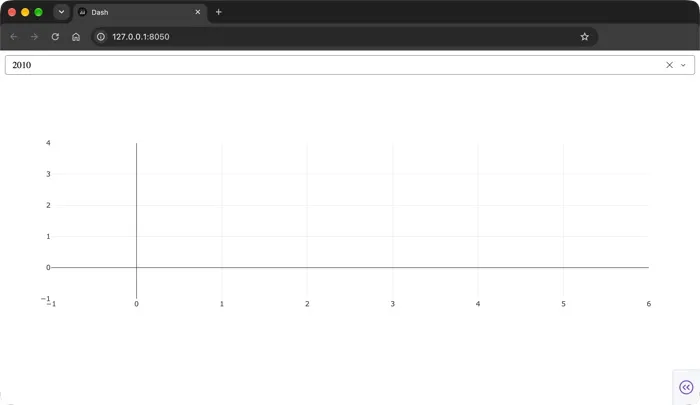
Output: The app with a Dropdown component showing a default value and an empty graph
Display the Bar Chart Based on the Selected Year:
- We already created a normal function that takes the data as a year and returns a bar chart showing the top 20 countries by population for that year. Converting it into a callback function requires only a slight modification.
- In the previous function, the last line was fig.show(), and in the callback function, we want to return the figure instead. The reason is because we have a component with the population_chart ID, and, we want to change its figure property. Returning the figure will hand it to the Graph component and modify its figure attribute.
app.py
python
1from dash import Dash, html, dcc, Output, Input
2import plotly.graph_objects as go
3import pandas as pd
4
5app = Dash(__name__)
6
7data_df = pd.read_csv('PovStatsData.csv')
8
9population_df = data_df.query("`Indicator Name` == 'Population, total'")
10print(population_df.head())
11
12app.layout = html.Div([
13    html.H1('World Population Database'),
14    dcc.Dropdown(id='year_dropdown',
15                 value='2010',
16                 options=[{'label': year, 'value': str(year)}
17                          for year in range(1974, 2019)]),
18    html.Br(),
19    dcc.Graph(id='population_chart'),
20])
21
22@app.callback(Output('population_chart', 'figure'),
23              Input('year_dropdown', 'value'))
24
25def plot_countries_by_population(year):
26    year_df = population_df[['Country Name', year]]
27    year_df = year_df.sort_values(by = year, ascending = False)[:20]
28    trace = go.Bar(x = year_df['Country Name'],
29                   y = year_df[year])
30    layout = go.Layout(title = f'Top twenty countries by population - {year}')
31    figure = go.Figure(data = trace, layout = layout)
32    return figure
33
34if __name__ == '__main__':
35    app.run(debug=True)
Output: