Range Slider:
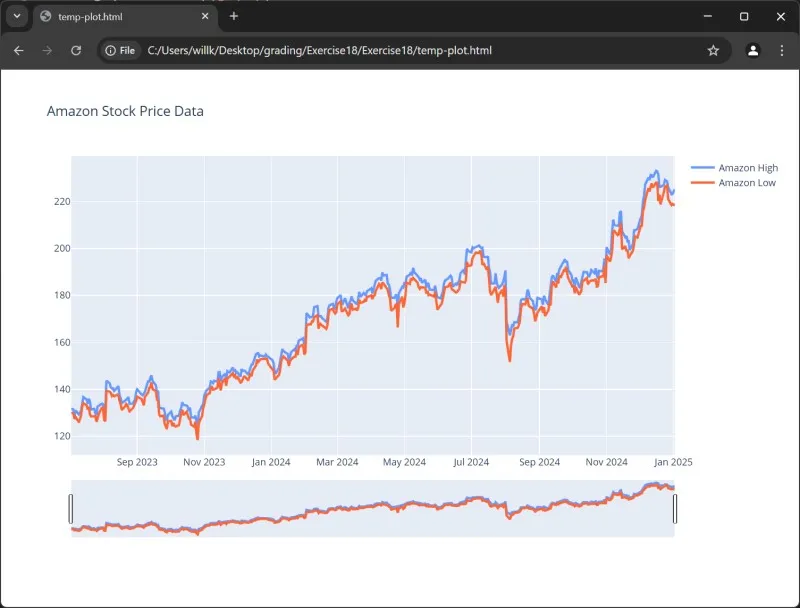
- When working with time series data, you might want to zoom into a particular portion of the graph in order to view information in a more granular format.
- To do so, we can configure the x-axis of the layout by specifying the range slider. When plotted, the visualization is the same as before, except below the x-axis sets a slider that you can move as seen below.
python
24# ---snip---
25layout = go.Layout(title = 'Amazon Stock Price Data',
26                   xaxis = dict(rangeslider = dict(visible = True)))
27fig = go.Figure(data = data, layout = layout)
28offline.plot(fig)
Output:
Range Selector:
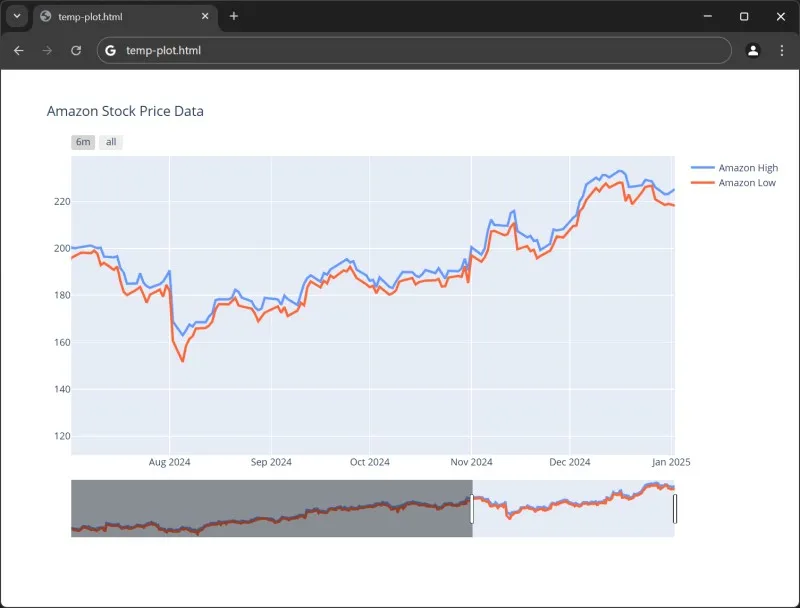
- Range selectors are usually buttons that give you quick access to the visualization within the limited time range.
- The below example has two separate buttons:
- The first button allows to view the data over a period of six months. The stepmode is set to backward, which displays all the data moving backwards from the current date back six months.
- The second button is a reset button. This will zoom out and show you all the data available.
python
24# ---snip---
25layout = go.Layout(title = 'Amazon Stock Price Data',
26                   xaxis = dict(rangeselector = dict(buttons = list([
27                                           dict(count = 6,
28                                                 label = '6m',
29                                                 step = 'month',
30                                                 stepmode = 'backward'),
31                                           dict(step = 'all')])),
32                            rangeslider=dict(visible=True)))
33fig = go.Figure(data = data, layout = layout)
34offline.plot(fig)
Output: