In-Class Activity 6: Individual Pages:
Objective: Further explore how to query data through a foreign key relationship by defining a custom Python function to display entries within the application. Then, build an MCP server that lets Claude Desktop query your database and summarize the results.
Description: Build another page that focuses on a single topic. The page should show the topic name and all the entries for that topic. Then, create a tool that lists every journal topic and counts how many entries each topic has. Finally, use Claude Desktop to query your database and summarize the results.
- Make a copy of your Activity5 folder and name the folder Activity6-IndividualPages. After the activity is completed, take two screenshots matching the solution images below and submit it to Canvas. There are no quiz questions for this deliverable!
- Navigate to the directory that contains manage.py and open the folder in VS code.
Part 1: Query the Database and Display the Entries
- Start by modifying the urls.py file so that the URL pattern for the topic page can use the topic’s id attribute to indicate which topic was requested.
- Modify the views.py file so that the
topic()function can get the topic and all associated entries from the database - Create the Topic Template, topic.html to display the name of the topic and the entries. Save this html file in the same directory as the other html files.
- Finally, modify the topics template (topics.html) so each topic links to the appropriate page.
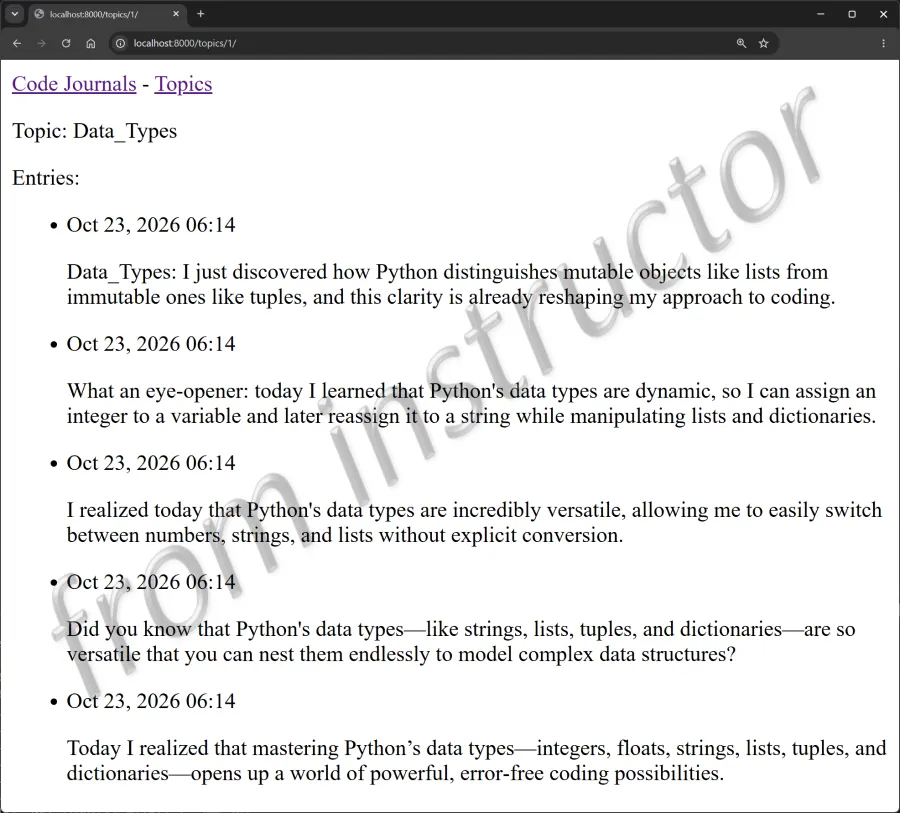
- When you refresh the topics page and click a topic (ex. Data_Types), you should see a page that looks similar to the below.
Part 2: Build an MCP Server to let Claude Desktop Query and Summarize Data in the Database
- Install FastMCP and create mcp_server.py in the same folder as manage.py.
- Add the count_entries_by_topic() tool, which lists every topic and the number of entries each one has.
- Update claude_desktop_config.json with the paths to your Python interpreter and to mcp_server.py, then completely quit and reopen Claude Desktop.
- In a new Claude Desktop chat, ask Claude to list your topics and count the entries for each.
- Claude’s answer should look similar to the below. Take a screenshot of your Claude Desktop conversation and submit it to Canvas along with your Part 1 screenshot.