In-Class Activity 2: Create an App:

Objective: Learn how to create a Django Python app. Define and activate a model. Discover how to set up a superuser and add topics to your database.

Description: Starting with the project called code_journal you created in Activity 1, create an app called code_journals.

  • Make a copy of your Activity1 folder and name the folder Activity2-CreateAnApp. After the activity is completed, take two screenshots matching the solution images below and submit it to the first quiz question on Canvas.
  • Navigate to the directory that contains manage.py. Be sure to be running runserver in the VS Code terminal window.

  1. Define a model, Topic with a field (attribute) called text and another called date_added.
    • The text attribute should have a CharField datatype.
    • The date_added attribute should have a DateTimeField datatype.
  2. Setup the Django Admin Site and create a superuser.
    • The username should be: cj_admin. Use your school email address for the email. Use the following password: a12345678.
  3. Register your model named, Topic with the Admin site
  4. Login to the admin site (http://localhost:8000/admin) and you should see a screen like the one listed below.
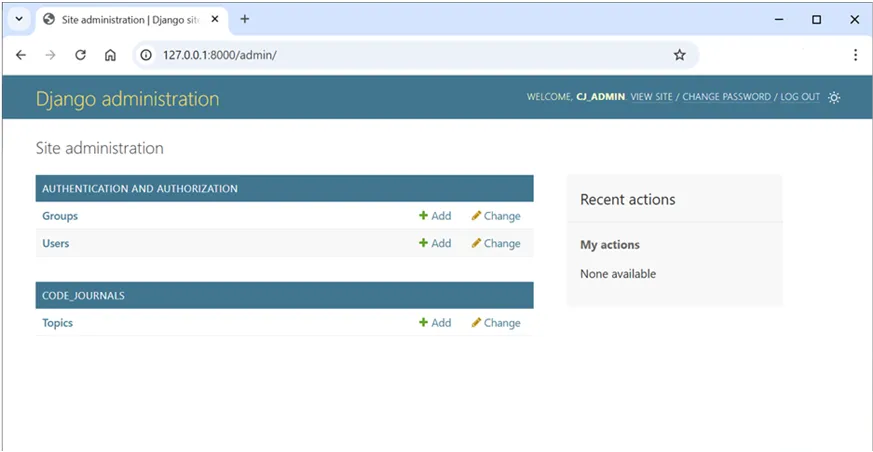
Django admin site dashboard in a web browser at 127.0.0.1:8000 admin. The main heading reads Site administration. A section titled Authentication and Authorization lists Groups and Users, each with Add and Change links. A section titled Code Journals lists Topics with Add and Change links, showing the Topic model is registered. On the right, a Recent actions panel shows My actions and None available. The top bar text includes Django administration and Welcome, CJ ADMIN, with links View site, Change password, and Log out. The page appears clean and organized with a neutral, professional tone.

  1. Finally, add the two Topics: Data_Types & Lists. You should see the following screen after adding the two topics.

Django administration Topics page in a web browser for 127.0.0.1:8000 admin code_journals topic. The page heading says Select topic to change. A button in the upper right says ADD TOPIC with a plus icon. A table lists two topics under TOPIC: Lists and Data_Types, with checkboxes beside each row and the text 2 topics at the bottom. Above the table, the Action dropdown is set to --------- with a Go button and 0 of 2 selected. The breadcrumb reads Home, Code_Journals, Topics. The top bar shows Django administration and account links reading WELCOME, CJ_ADMIN, VIEW SITE, CHANGE PASSWORD, LOG OUT. The interface appears clean, structured, and professional with a calm neutral tone.