Take a snapshot of your DNS Server before starting. (Name the snapshot: Before RAID)
In vSphere, on your cis335-g#-s#-dns server, add two news disk of 5G in size each, thin provisioned.
Using Disk Management, bring the disks online and initialize them.
To create a software RAID volume in the Disk Management tool, you right-click one of the disks that you wish to configure as a RAID volume and then click New Striped Volume.
In the New Striped Volume Wizard, select both 5G disks and set the maximum amount of space for the volume.
Assign the new volume a drive letter of: S
Name the volume, Striped
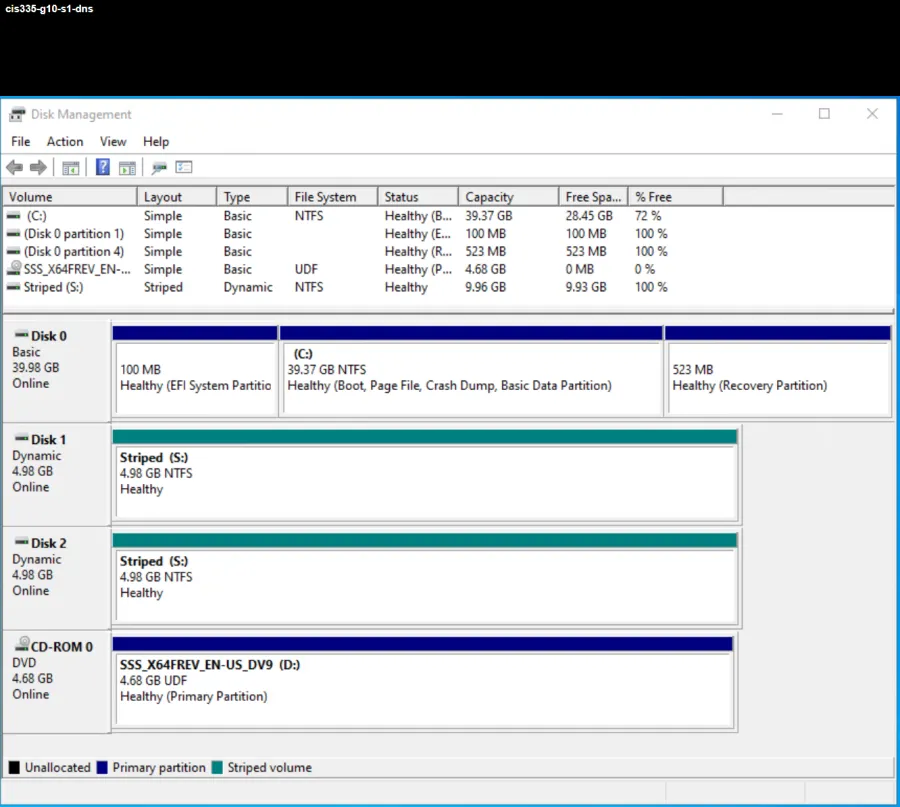
When you click Finish at the end of the New Striped Volume Wizard, you are prompted to convert the disks from basic to dynamic to complete the RAID configuration. Select “Yes” to the message. After the resynching process is completed, the word Dynamic should be displayed and the status of the RAID volume, similar to the below: