Lab Project 1 - Two Server LAMP Based Application:
Objective: In this lab you will show that you can deploy servers from templates, install, enable, and configure various services and applications. You will create two new Linux servers. On one server you will install Apache and the WordPress application. On the second server you will install Webmin and MariaDB. You will also configure MariaDB, Webmin and Apache to be accessible from other systems via manipulation of FirewallD rules.
-
Deploy 2 virtual machines:
- A. Server 1 - WordPress Server
- i. VM Name: cis335-g#-s#-wps1
- ii. IP Address: 192.168.g#.s#7
- B. Server 2 - MariaDB Server
- i. VM Name: cis335-g#-s#-db1
- ii. IP Address: 192.168.g#.s#8
- A. Server 1 - WordPress Server
-
On both machines, run the following commands:
- A.
rpm --import /etc/pki/rpm-gpg/RPM-GPG-KEY* - B.
dnf clean all - C.
dnf update -y
- A.
-
On both machines, install the following packages:
- A. epel-release
- B. wget
- C. mariadb
- D. yum-utils
-
Create a VMware snapshot called snapshot1 of both systems at this point.
-
Configure Apache on Server 1 (WordPress server)
- A. Install the apache web server
- B. Start the apache server, and make sure it starts after rebooting
- C. Open port 80 on the firewall with the permanent setting, then reload the firewall rules.
- D. Install php 8.3 and enable remi repository with the following commands:
- i. rpm -Uvh http://rpms.remirepo.net/enterprise/remi-release-9.rpm
- ii. dnf module enable php:remi-8.3 -y
- E. Install the following seven packages:
- i. dnf install -y php php-opcache php-mcrypt php-cli php-gd php-curl php-mysql
- F. Restart the httpd server to make sure those changes take effect
-
Install Webmin on Server 2
- A. On server 2, install, and enable the Webmin application. Configure the firewall to allow access on port 10000. Note: you can refer to the instructions from the week 3 assignment as well as the walkthrough video.
-
Take a second VMware snapshot of Server 2 called, snapshot2-After Webmin
-
Install MariaDB Server on Server 2
- A. Installing will be a similar process to the week 3 assignment. However, you will need to make sure that the default ports for MariaDB/MySQL are open in the firewall so that your WordPress Server will be able to connect remotely. Note: The walkthrough video on Canvas covers this step.
-
Use Webmin to configure a database for WordPress on Server 2 (Similar to the week 3 assignment).
- A. Name the database: wpdata
- B. User for database: wpdatauser
- C. Give user, wpdatauser, all permissions to the wpdata database
- D. In addition, you will need to allow access for this user to this database from your WordPress web server.
-
Take a third VMware snapshot of Server 2 called, snapshot3-Final Config
-
Install WordPress on Server 1:
- A. Follow the same steps as the assignment from week 3. However, when you edit your wp-config.php file, you will need to add one other field. Make sure you set the MySQL host to the IP address for your server 2.
- B. Disable SELinux (Security-Enhanced Linux) using the following command: setenforce 0
- i. To permanently disable selinux you can edit the selinux preference file (/etc/sysconfig/selinux) and change it from enforcing to disabled (or permissive)
- C. Make sure your WordPress page loads.
-
Poweroff the server. Take a second VMware snapshot of Server 1 called, snapshot4-After WordPress Install
-
Power the server back on and make sure your firewall still has port 80 open and that the httpd service is running. Make sure you can still access the WordPress installation in your web browser on your client machine. If you can’t, either the firewall rules aren’t permanent, or your httpd service isn’t enabled on server 1. Fix any errors that you may have uncovered.
-
Reboot your server 2. Once it comes back up, make sure the WordPress page still loads. If it doesn’t, this means either the firewall rules are not correct, or your Mariadb.service is not set to restart automatically on boot on server 2. Fix any errors that you may have uncovered.
-
Submit a screenshot to Canvas of your Webmin interface and your WordPress home screen as proof of completion, similar to the below:
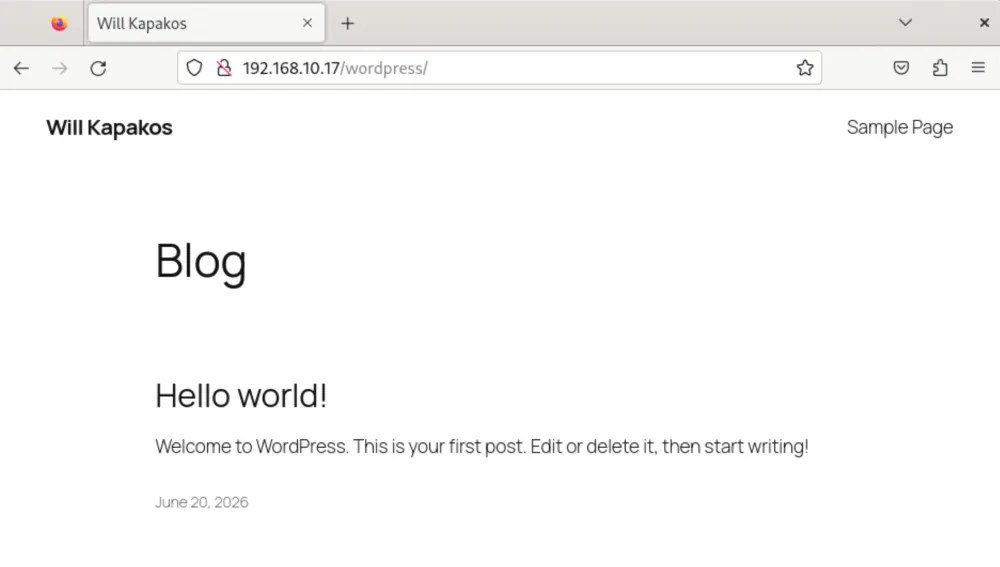
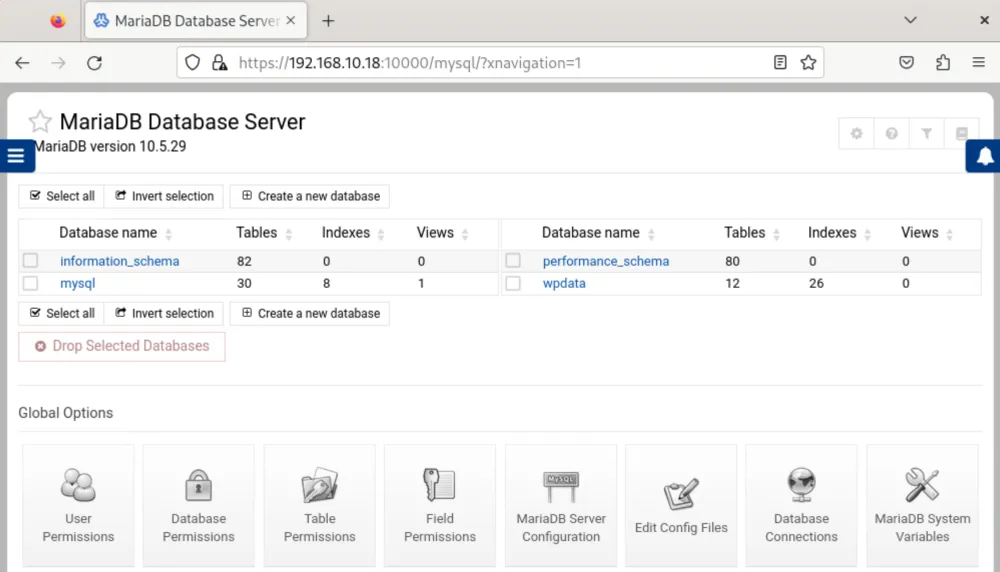
The lab will be graded as follows:
- I will restart both your Server 1 and Server 2
- I will check to make sure your WordPress page still loads
- I will check to make sure your servers are in the correct folder
- I will check to make sure your servers have the correct IP addresses
- I will check to make sure your database name and database username are rrect
- I will check to make sure I can access your webmin interface
- I will check that you have 2 snapshots of Server 1 named correctly
- I will check that you have 3 snapshots of Server 2 named correctly