Create an Azure Function App:
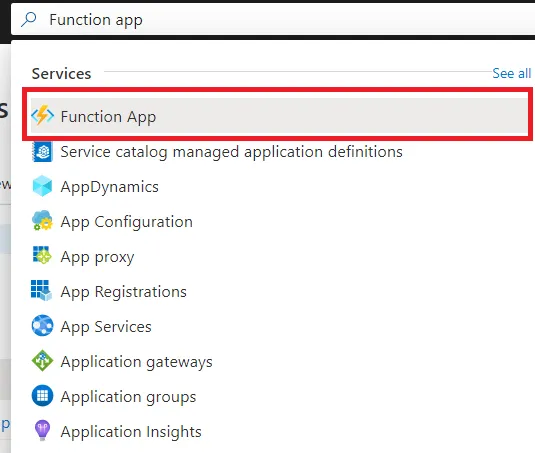
- From the Azure portal, portal.azure.com, search for Function App in the global search bar.
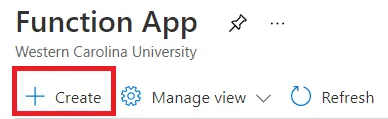
- Open the Create Function App blade by clicking the + Create tab.
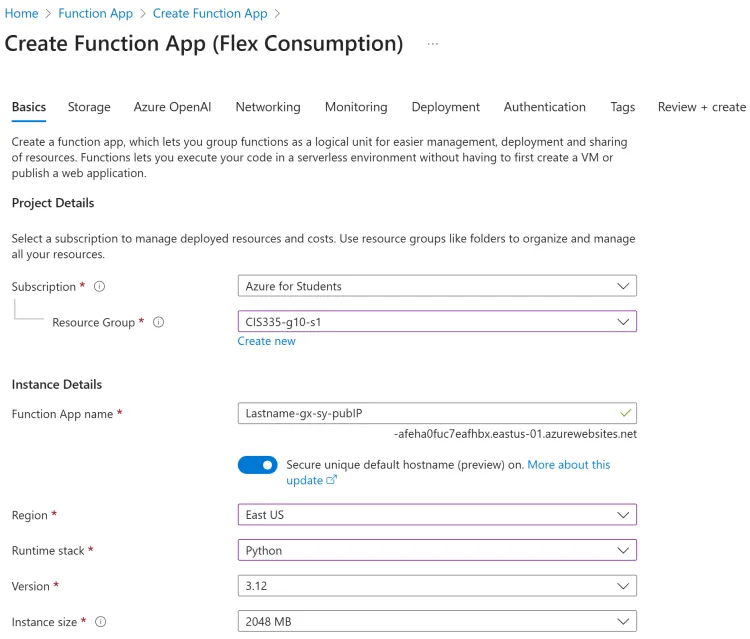
- When prompted to Select a hosting option, choose Flex Consumption.
- Below, on the Basics page name the function app: Lastname-gx-sy-pubIP (Where x is your group # and y is your student #):
- Select the Storage tab and ensure a new storage account is populated.
- Finally, click the Review + create tab. Then click the Create button.
Troubleshooting Region Errors
Azure for Students subscriptions only allow you to create resources in a small set of regions, usually three to five, and your list may differ from your classmates’ lists. Don’t assume the default region in the portal will work.
See where Function Apps can run:
Open Cloud Shell by clicking the >_ icon in the navigation bar of the Azure portal. Make sure it’s set to Bash; if it says PowerShell, switch it with the dropdown at the top left of the shell.
(Updated on 11/17 at 8:00 p.m.) Paste the following command and press Enter. It lists every region where a Function App on the Flex Consumption plan can run, not which regions your subscription allows.
1az functionapp list-flexconsumption-locations -o tableFind a region that works for you:
There’s no reliable way to see your allowed regions ahead of time, so the quickest way to find one is to try. Pick a region from the list generated above. If the deployment succeeds, that’s your region. If it fails, try the next region on the list. Regions that worked from some students include:
- Central Canada
- US West 2
- South Central US
- France Central
- US West 3
- US West