(As a group) Create an Additional Group Policy Object (GPO) for a New OU on the DC:
- Within your group’s Domain Controller (DC), open Active Directory Users and Computers and add a new OU named, Marketing, in the root of your domain.
- Create two new users named: user1 & user2. Use the default course password. Set password to never expire.
- Configure the appropriate permissions for the user1 user to access the CIS-Software folder.
- Using the Microsoft Edge web browser on the DC, navigate to zoom.us/download. Under Zoom Workplace, click on the Zoom Workplace for Windows (64-bit) button to download the Zoom Workplace MSI file, and place it in the CIS-Software folder.
- Create an additional GPO and name it, Marketing Users Policy.
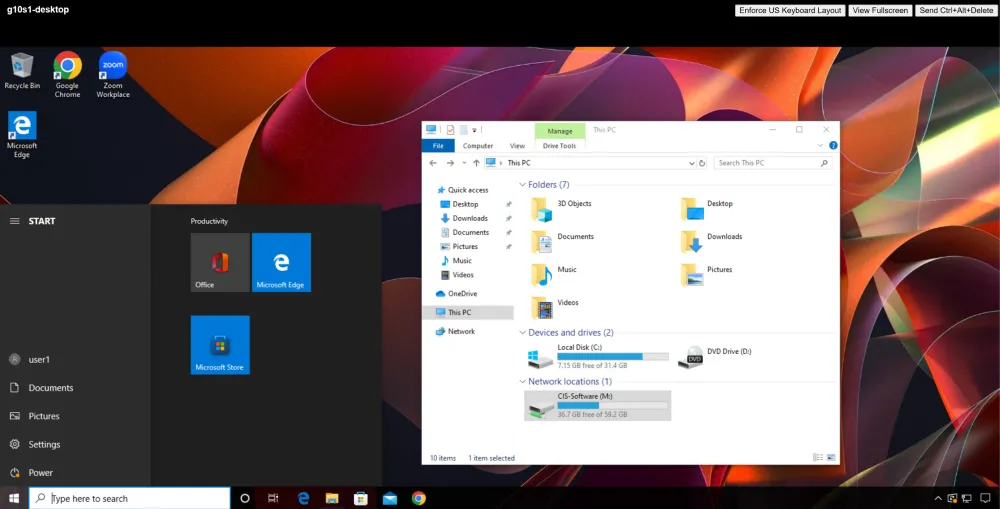
- Add both the Google Chrome and Zoom software packages to the User Configuration Software Settings for the Marketing Users Policy GPO. Set deployment types to Assigned and ensure the applications install at logon.
- On the DC, copy the following wallpaper image located in C:\Windows\Web\Wallpaper\Captured Motion\img25.jpg to \\group#-DC01\CIS-Software\img25.jpg. In the GPO, edit the Desktop wallpaper setting, select the Enabled radio button and add the UNC path where the image is located.
- Edit the Start Menu and Taskbar settings to Remove the volume control icon and Remove Clock from the system notification area.
- Configure a new M: drive map for \\group#-DC01\CIS-Software in Group Policy Preferences. Label the drive map, CIS-Software
- Link the Marketing Users Policy GPO to the Marketing OU
(Individually) Test the Marketing GPO Policies and Preferences:
- Login to your g#s#-desktop Windows 10 VM as user1
- Click the Start button and open a command prompt
- Type the following to update the Group Policy settings: gpupdate
- Restart the Windows 10 VM and log in as user1 and confirm the policies and preferences have been applied, similar to the below image:
gXsY-desktop